.png)
wallpaper
How to Set Up the Wallpaper Template (Windows & Mac)
Written by Randal
Turn your desktop into a cozy interactive app. It takes about 3 minutes.
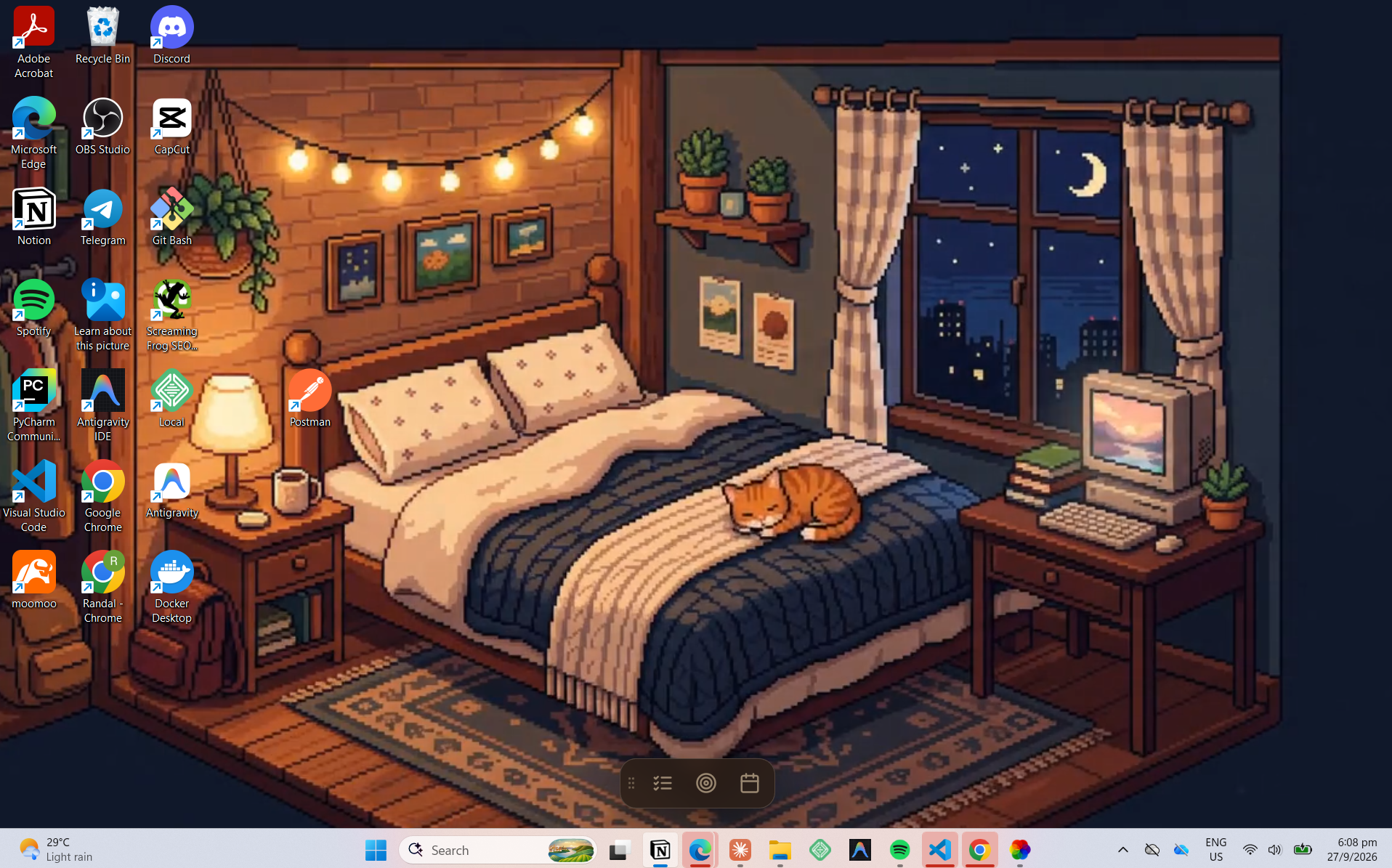
What You'll Need
- A Windows PC or a Mac
- A free wallpaper app: Lively Wallpaper (Windows) or Plash (Mac)
- The wallpaper link (Optional for Window Users)
💡 Your data stays on your computer. Your to-dos, goals, and calendar entries are saved on your own device. Nothing is sent to me or anyone else.
🪟 Windows Setup (Lively Wallpaper)
Step 1: Install Lively Wallpaper
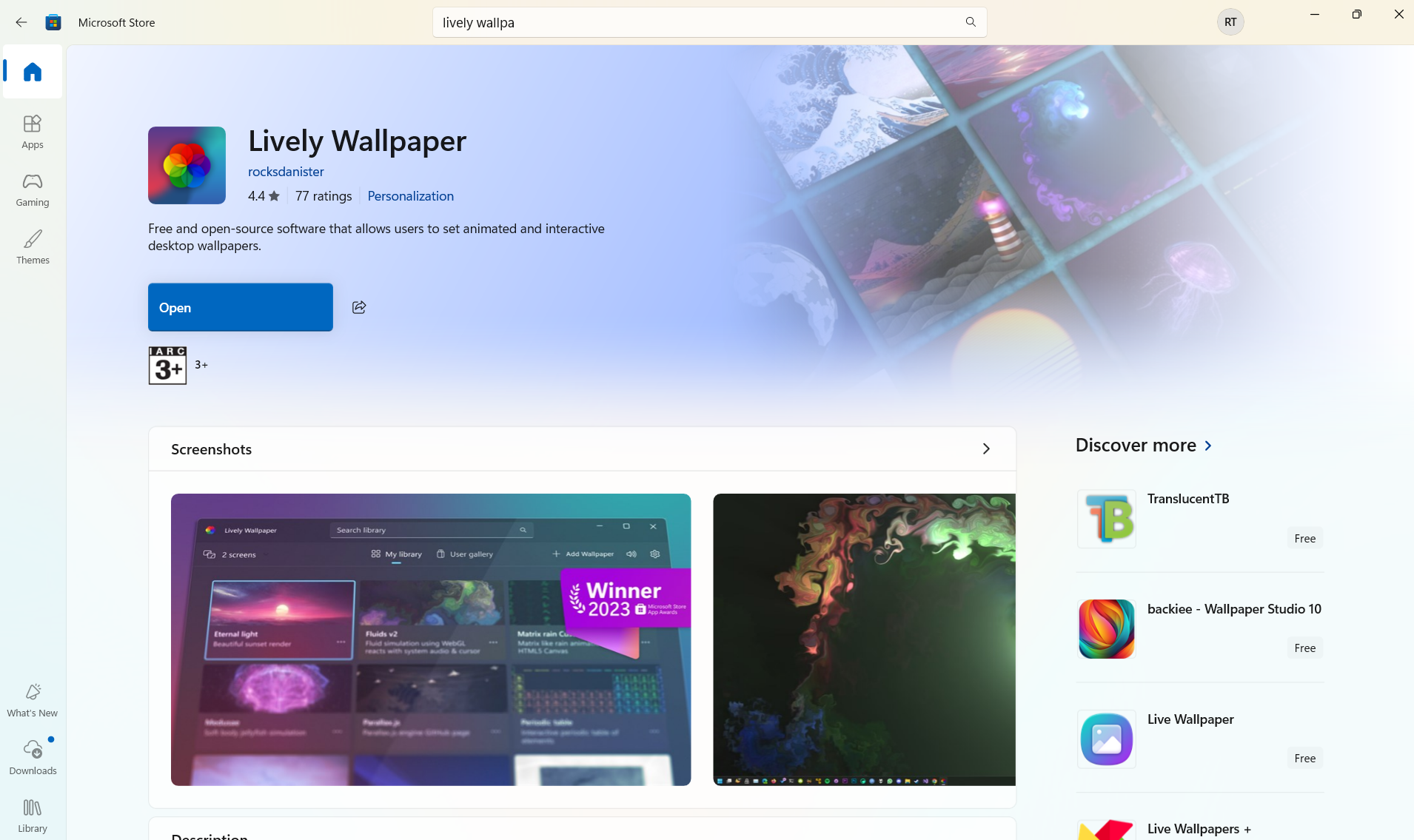
Open the Microsoft Store, search for "Lively Wallpaper", and click Get. It's free and open source.
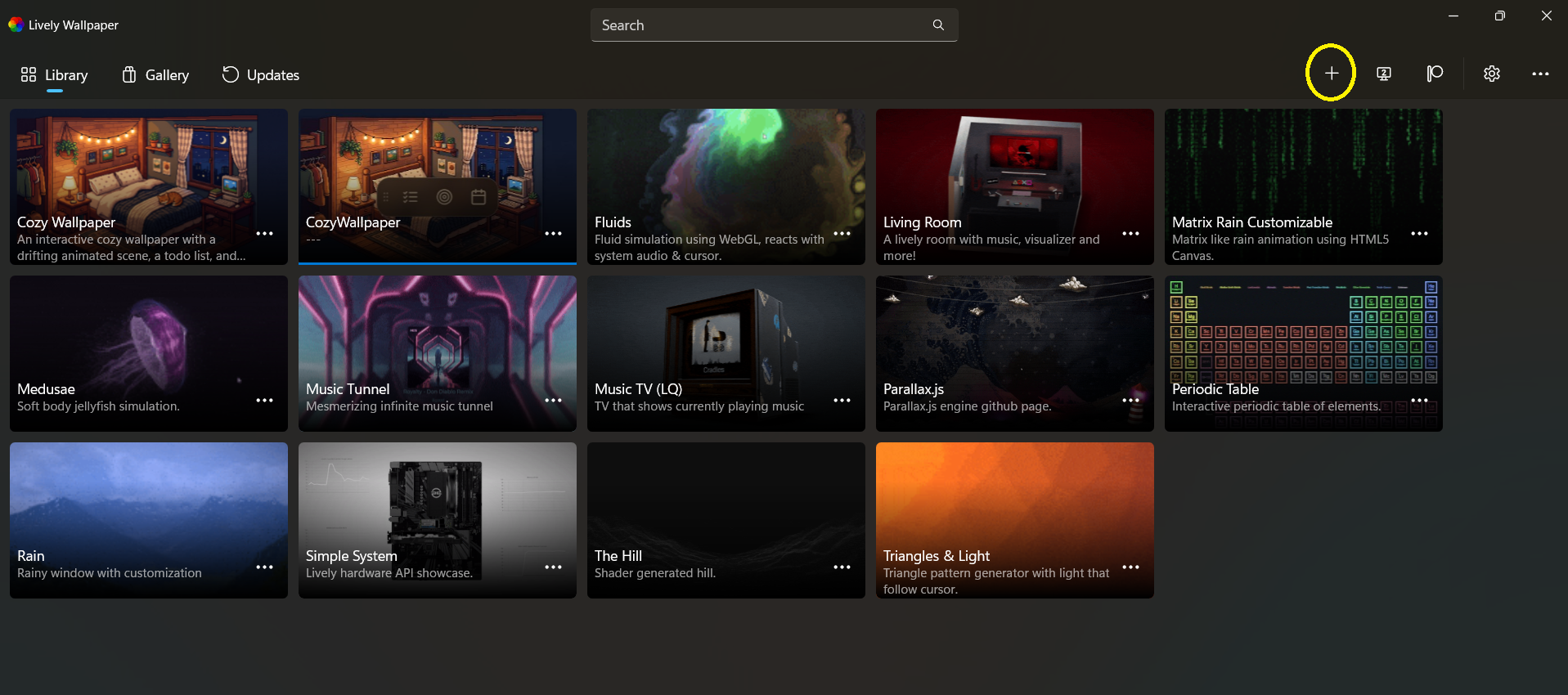
Step 2: Open Lively and click the "+" button
Launch Lively. At the top of the window, click the "+" (Add Wallpaper) button.
Step 3: Add the wallpaper (choose ONE option)
You can add the wallpaper using the link or the zip file. Pick whichever you prefer:
| Option A: Use the link ⭐ Recommended | Option B: Use the zip file | |
|---|---|---|
| Updates | Automatic, you always get the latest version | Manual, you must re-download for new versions |
| Internet | Needed to load | Works offline |
| Setup | Paste a link | Download and import a file |
Option A: Use the link (recommended)
In the URL field,
- Paste the wallpaper's URL
You'll find the URL in the respective wallpapers' product description on nodelearn.gumroad.com.
- Click the arrow
Lively will load a preview of the wallpaper.
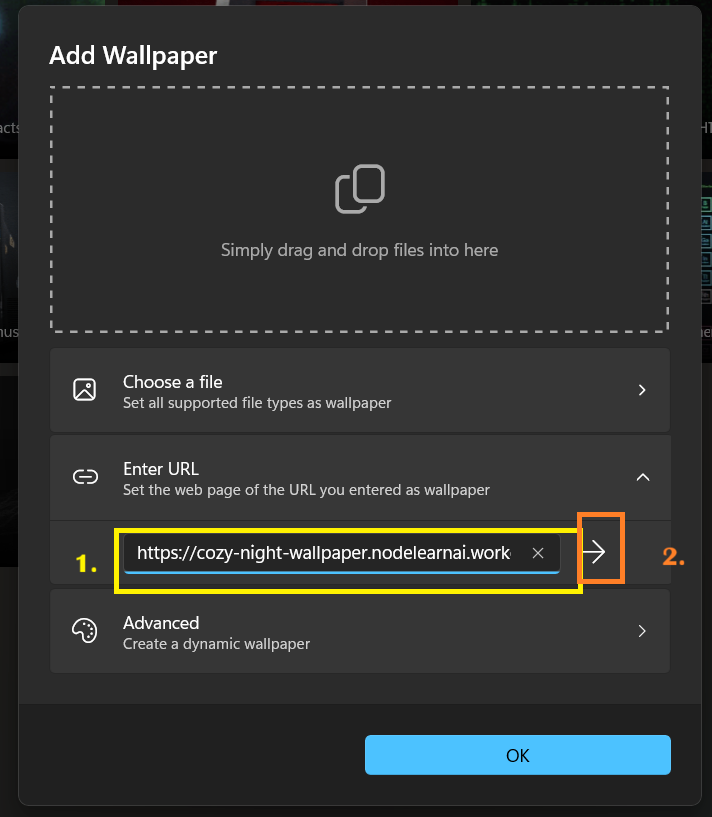
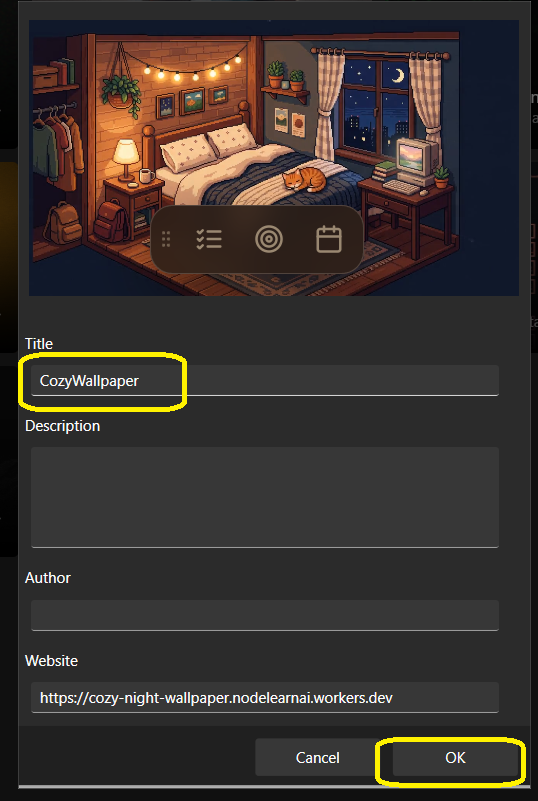
- Rename the wallpaper and then click “OK”
Option B: Use the zip file
- Download the zip file here:
https://nodelearn.gumroad.com/
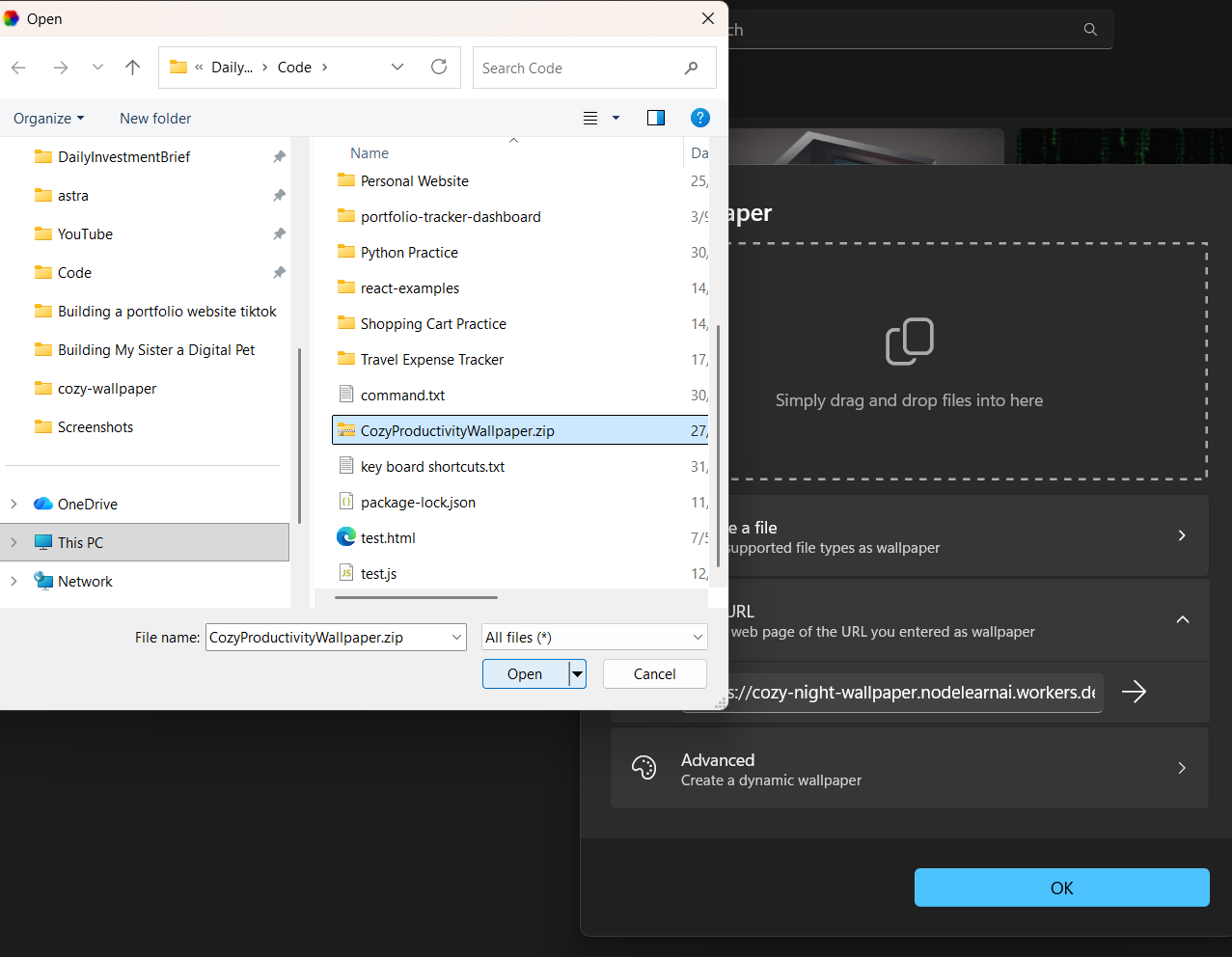
- Don't unzip it. Lively imports the zip directly.
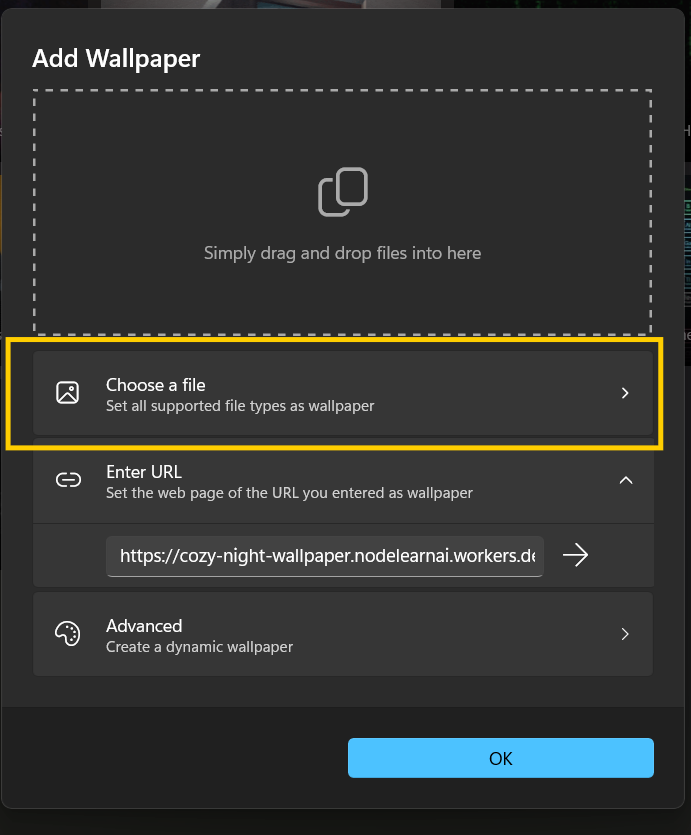
- On the Add Wallpaper screen, click Choose a file and select the zip file you downloaded.
- Or simply drag and drop the zip file into the Lively window.
- Then click “OK”
⚠️ Heads up: Your to-dos and goals are stored separately for each option. If you switch from the zip version to the link version (or the other way around), you'll start with an empty list.
Step 4: Renaming the Wallpaper
- Click on the “…” icon
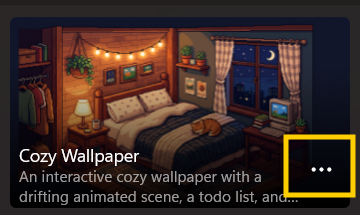
- Select Edit
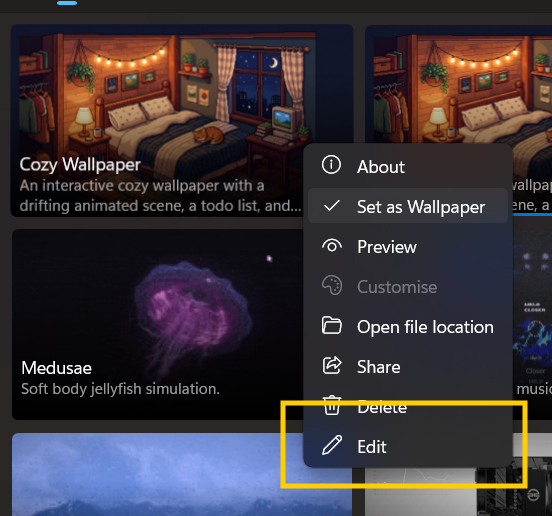
- Rename your wallpaper in the “Title” field
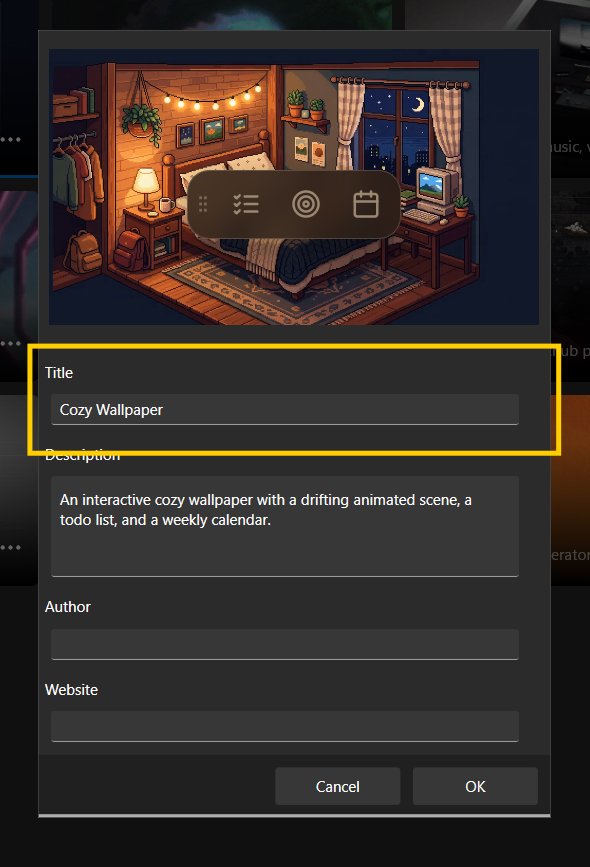
Give it a name like "Cozy Bedroom" or anything you like and confirm. It will appear as a tile in your Lively library.
Step 5: Applying the Wallpaper
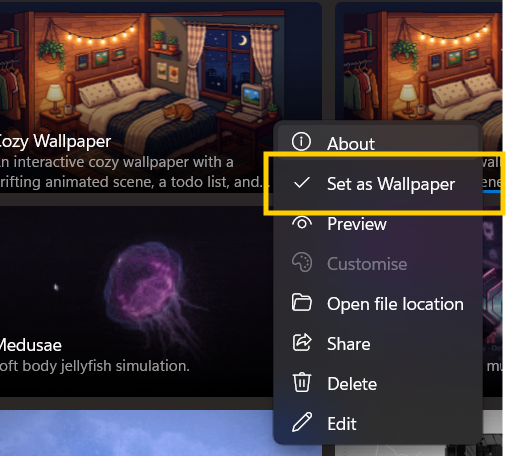
Click the “…” icon and then select the “Set as Wallpaper” option
Step 6: Tools Data Persistence
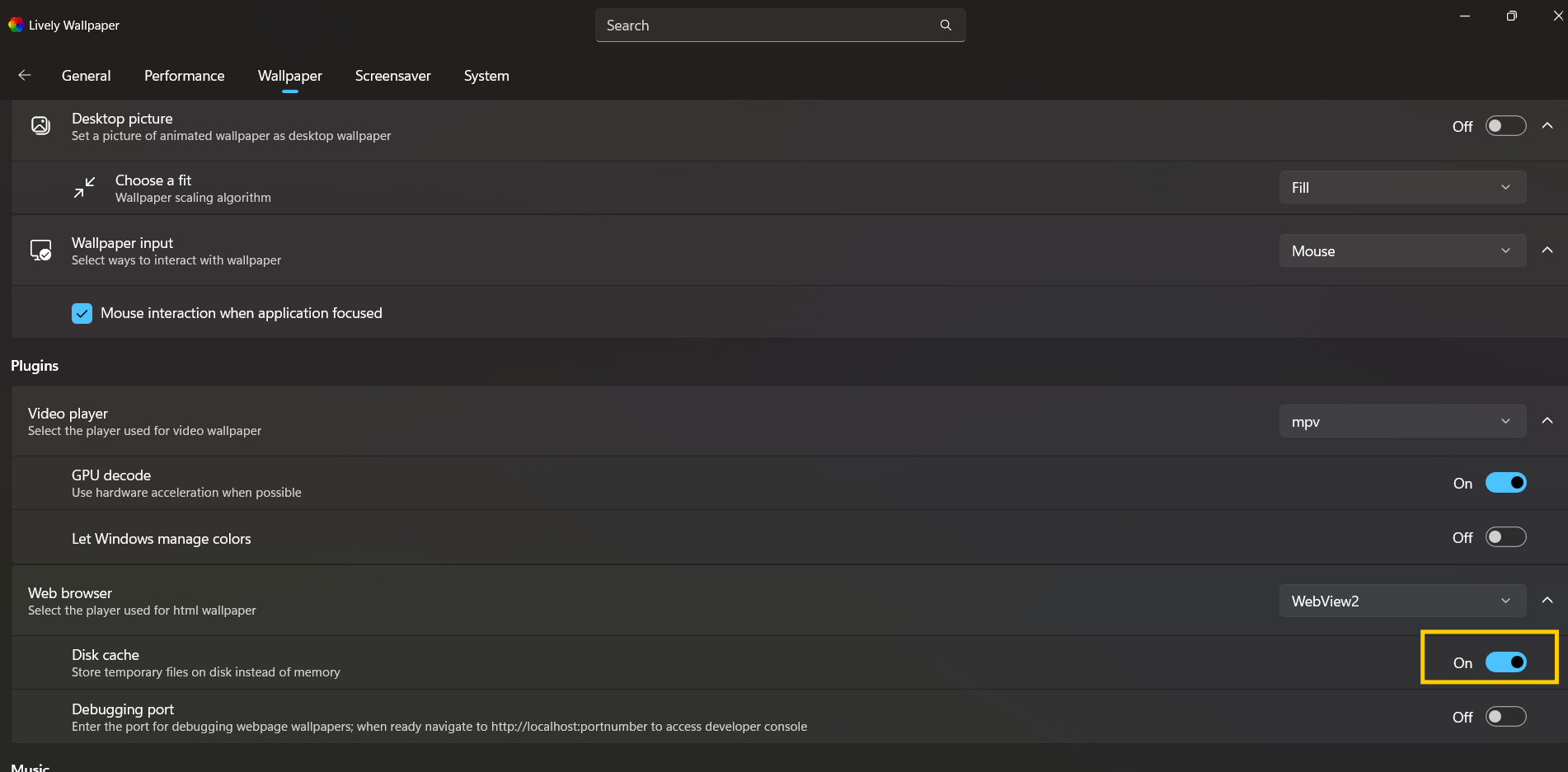
To ensure that Lively Wallpaper saves the data that you saved in your tools and does not erase them when you restart your laptop. Open the following
Open Settings > Wallpaper >Disk Cache
Switch to Disk Cache to “On”
Step 7: Use it!
That’s it! Enjoy your wallpaper 😆
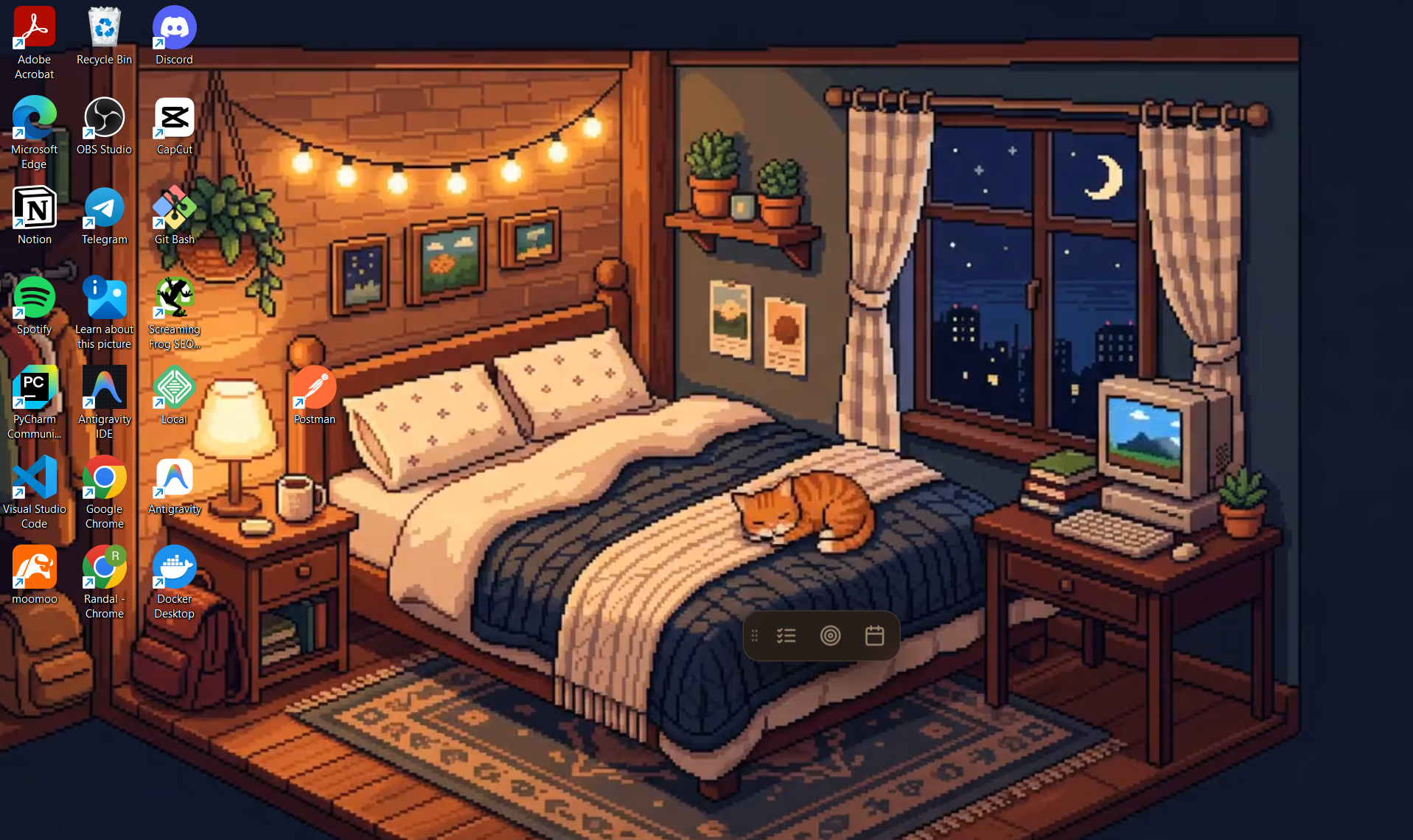
🍎 Mac Setup (Plash)
Unfortunately as of this writing, I do not own a Mac so I’m unable to write a tutorial on how to set up the wallpaper for MacBook users.
I’ve found this easy tutorial on how to set up the wallpaper here on YouTube:
MacBook Wallpaper Set Up Tutorial: https://www.youtube.com/watch?v=s82q87Q4m8I
Wallpaper URL: You'll find this in the respective wallpapers' product description on nodelearn.gumroad.com.
🛠 Troubleshooting
The wallpaper is blank or not loading
- Link: Check that you're connected to the internet and that the link was pasted exactly, with no extra spaces.
- Zip file: Make sure you imported the zip file itself and didn't unzip it first. Try downloading it again in case the download was incomplete.
I can't click anything
- Windows: Make sure wallpaper input is enabled in Lively Settings, and press Win + D to show the desktop.
- Mac: Turn on Browsing Mode in Plash.
The animation stopped
That's normal. Lively and Plash can pause the wallpaper when an app is fullscreen or maximized to save battery and performance. It resumes when you return to the desktop.
My to-do list disappeared
Your data is saved inside the wallpaper app on your computer. Ensure your turned on “Disk Cache” as instructed on top
❓ FAQ
Is it free?
Yes, the wallpaper and both apps are free.
Is my data private?
Yes. Everything you type is stored locally on your own device. It is never uploaded anywhere.
Will I get updates automatically?
If you used the link, yes. Improvements show up automatically. If you used the zip file (Windows), download the latest zip and import it again to update.
Can I use it on multiple computers?
Yes, but each computer keeps its own separate data.
💬 Enjoying It?
If you set it up, I'd love to see it! Tag me on
YouTube: YouTube
Instagram: Instagram
TikTok: Randal (@randalbuildsinpublic) | TikTok